
Parker’s Mobile IOT Dashboard: Managing Sub Organizations
There are always new tools and features to master in Parker Hannifin‘s IQAN® creative suite, including new IOT capabilities. But where do you start? What are the first steps after ordering the necessary hardware? As one of Parker’s top distributors, the GS Global Resources team can walk you through everything, from ordering components, to setting up your data plan, and taking full advantage of the tools within the portal.
In a previous post, we discussed ordering a Gateway from Parker and it’s initial setup. Once you have the necessary hardware set up and connected to the appropriate data plan, an OEM may want to transfer a service plan to their customer or dealership. This requires creating and setting up a sub organization within your dashboard.
Adding a Sub Organization
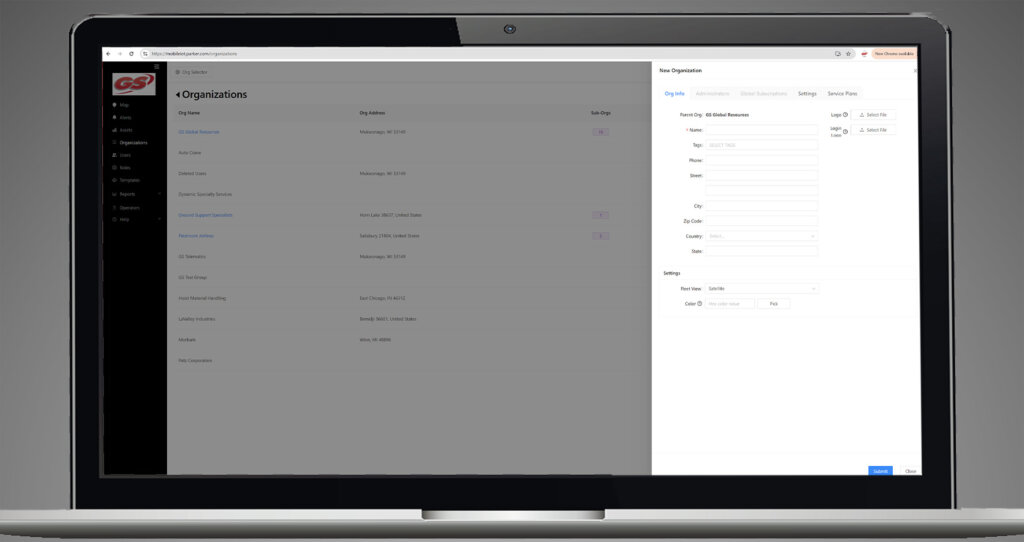
To create a new sub organization, open the “Organizations” tab in the left side navigation bar. Find the desired organization you want to work within and click on the “Action” button the right side. From that menu, select “Create a Sub Organization.” On the “Org Info” tab, enter the name and other information about your new sub organization. You can also update the logo and login images, if necessary. The image is restricted to either a .jpg or .png format and should be 140 x 68 pixels to prevent scaling issues. Once you’ve finalized all of the details, just click “Submit.”
Assigning an Asset to a Sub Organization
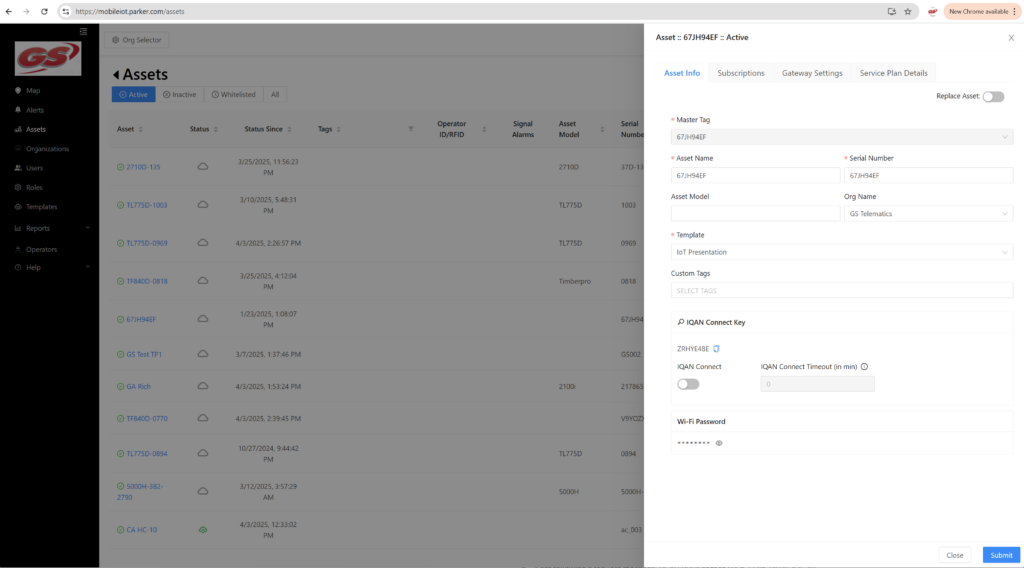
Once your sub organization has been created, you’ll want to assign it the appropriate asset or assets. Within the “Assets” menu of your dashboard, find which one you want to assign to the sub organization and click “Edit Asset.” Within the “Org Name” drop-down menu, select the desired sub organization and click “Submit.”
Transferring Service Plans to Sub Organizations
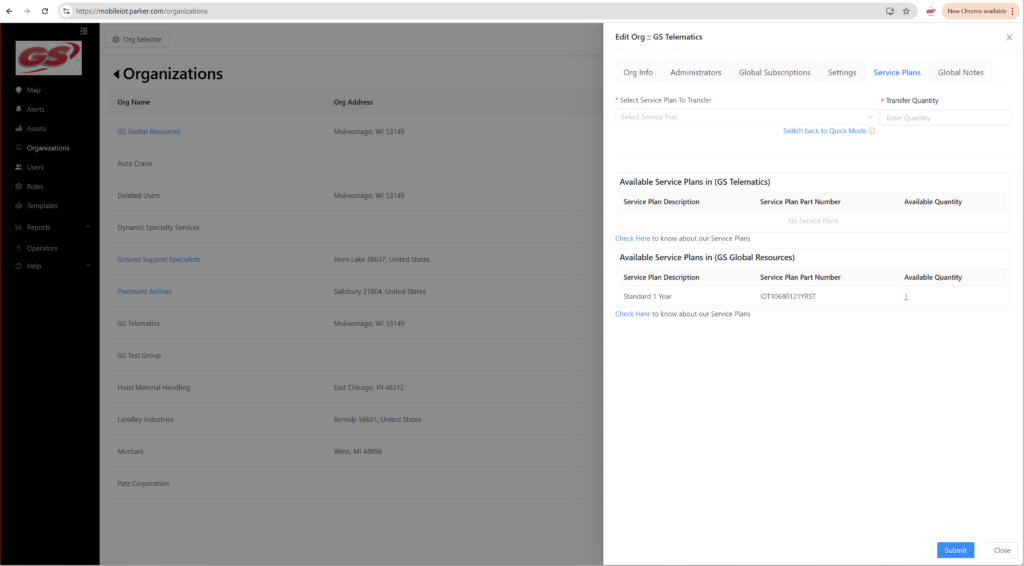
If you need to transfer a service plan from one sub organization to another, you will again open the “Organizations” menu and find the sub organization you want to work with. Click the “Action” button and select “Edit Organization.” On the “Edit Organization” window, select the “Service Plan.” From there, you need to drop down the “Select Service Plan to Transfer” menu at the top, and select the appropriate plan from the ones available. You’ll need to enter the quantity to transfer to the sub organization and then click “Submit.”
Defining User Roles and Assigning Users Within a Sub Organization
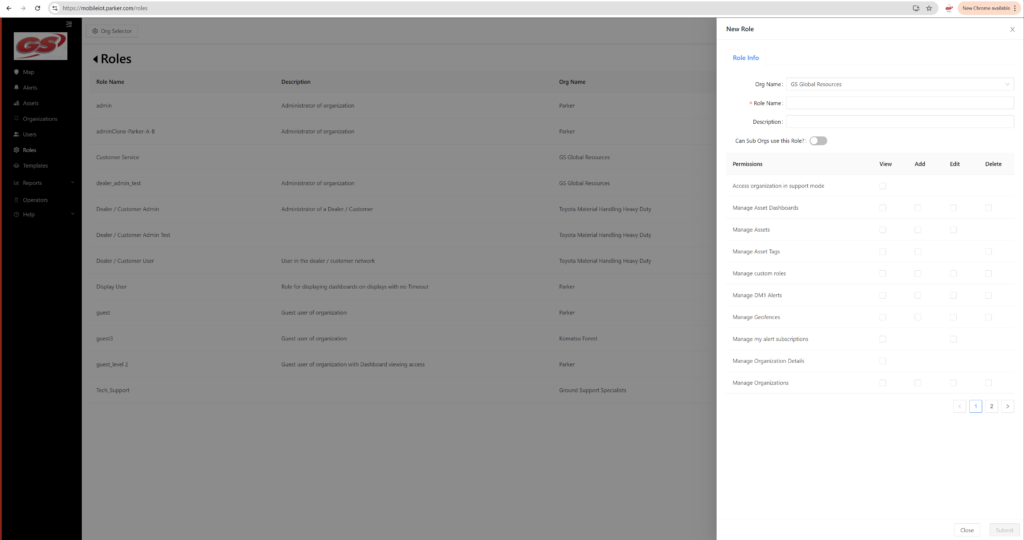
In order for your customer or dealer to start utilizing the dashboard and all of its tools, you will also need to give access to the appropriate people and assign them the right user level, in terms of what they can do. You’ll need to create the necessary roles, such as dealer manager or technician by opening the “Roles” menu. Click “+ Role” in the top right corner, and enter the appropriate information. You’ll also need to select or leave blank all of the permissions applicable to that role. For example, you may want management to have full adding and editing capabilities, where a technician may just need to have viewing permissions for different items. Once roles have been created, you’ll want to set up the individual users by opening the “Users” menu. Click “+ Users” and fill out all of their information, including assigning them the appropriate “eRole.”
Contact us today to find out how we can integrate the appropriate IOT components into your machine line so that you can see real ROI from their comprehensive, AI generate reports based on your historic machine data.